
Wireless HDMI Display Dongle Adapter – Miracast Dongle with AirPlay DLNA, for Video/Audio Streaming from Phone, Laptop to HDTV, Monitor, Projector
$49.99
Related Products




Product description
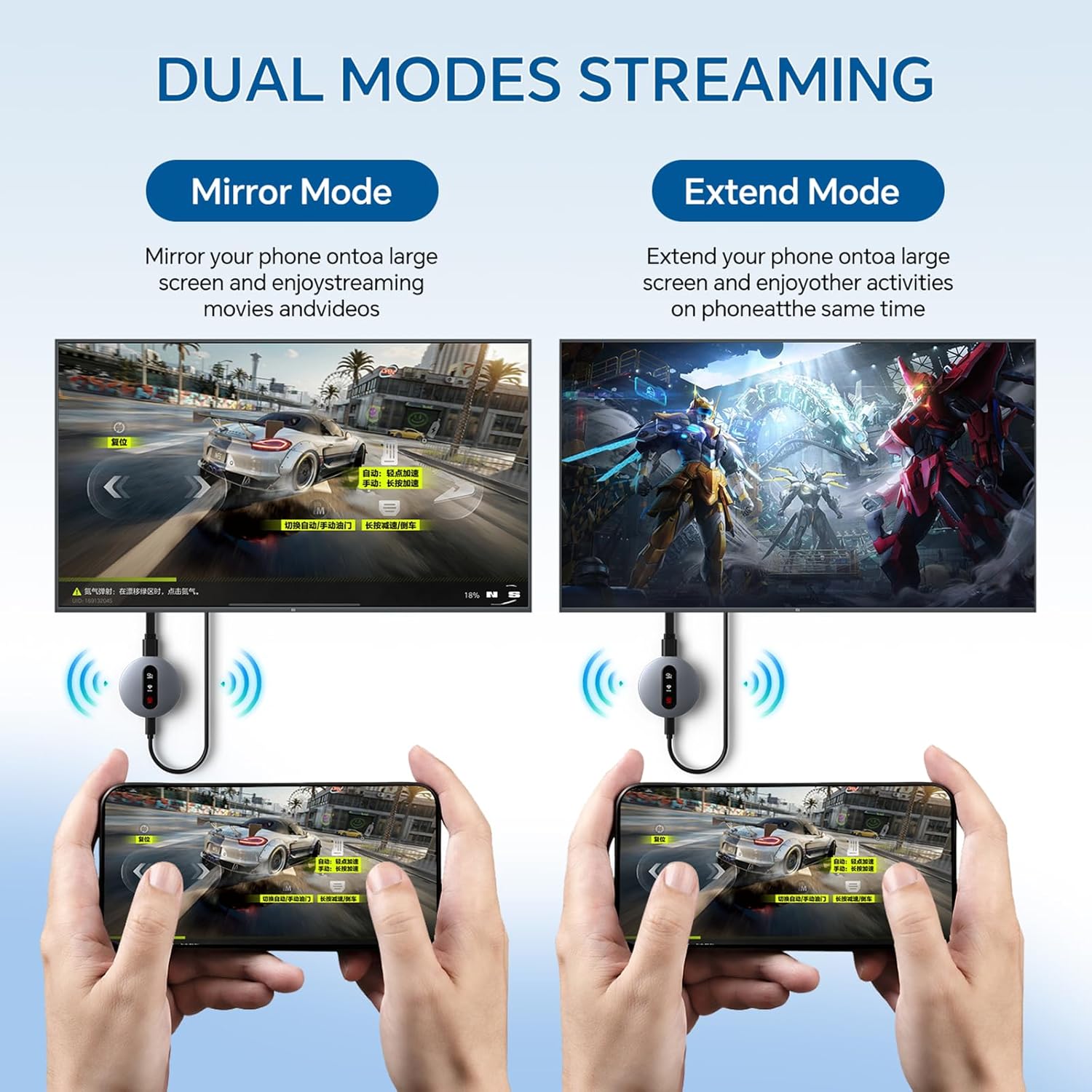
Miracast | AirPlay | DLNA Wireless HDMI Adapter

Activating DLNA Mode
1. Switch to DLNA Mode
Use the front button to set the device to start in DLNA mode.
2. Connect to the Device Hotspot
On your smartphone, go to Settings > Wi-Fi.
Find and connect to the hotspot named “MirascreenPro-XXXX”.
Enter the password shown on the screen.
3. Connect to Your Router
After connecting, go back to the home screen and open your web browser.
Enter the URL: 192.168.203.1 and press Enter.
Select SCAN to search for available Wi-Fi networks.
Choose your router’s network, enter the router password, and wait a moment for the connection to complete.
Note:
The initial network setup is only needed once. After that, the device will automatically reconnect to your Wi-Fi.For the best experience, connect the device to a 5GHz Wi-Fi network.
.


Using DLNA on Android & iOS
1. Start Playback
Open your preferred video or music app (e.g., YouTube or TikTok) and start playing your content.
2. Activate Streaming
Tap the DLNA/AirPlay icon (usually found in the upper right corner).
Find and select “MirascreenPro-XXXX” to begin DLNA/AirPlay streaming.

For iOS Devices (AirPlay)
Ensure P2P Mode: The device should be in P2P mode (default startup mode).Open Control Center on your iPhone/iPad.Tap Screen Mirroring and select “MirascreenPro-XXXX”.Enter the password shown on your screen (required only for the first connection) to start mirroring.
For Android Devices (Miracast)
Ensure P2P Mode: Use the front button to switch the device to P2P mode.On your Android device (Android 4.4 or later with Miracast support), enable screen mirroring: Open Settings → Connected devices → Connection preferences → Cast (path may vary by device). Alternatively, swipe down to open the quick panel and tap Smart View, Cast, or Wireless Display.Select “MirascreenPro-XXXX” from the list to start mirroring.
.

For Mac Devices (AirPlay)
Ensure P2P Mode: Confirm the device is in P2P mode.Click the AirPlay icon in the menu bar of your Mac.Select “MirascreenPro-XXXX” to begin mirroring.
For Windows Devices (Miracast)
Ensure P2P Mode: Verify the device is in P2P mode.(For Windows 8.1 and later, ensure your system supports Miracast.)Press Windows + K to open the Connect panel (or Windows + P for projection options).Select “MirascreenPro-XXXX” from the list of available wireless displays.Wait a few seconds for the connection to complete and your screen to appear.

Friendly Reminder:
Before connecting, use the toggle button to select the correct mode for your system. This device supports a stable transmission range of up to 13–15 feet, ideal for home entertainment, business meetings, presentations, and group gatherings.

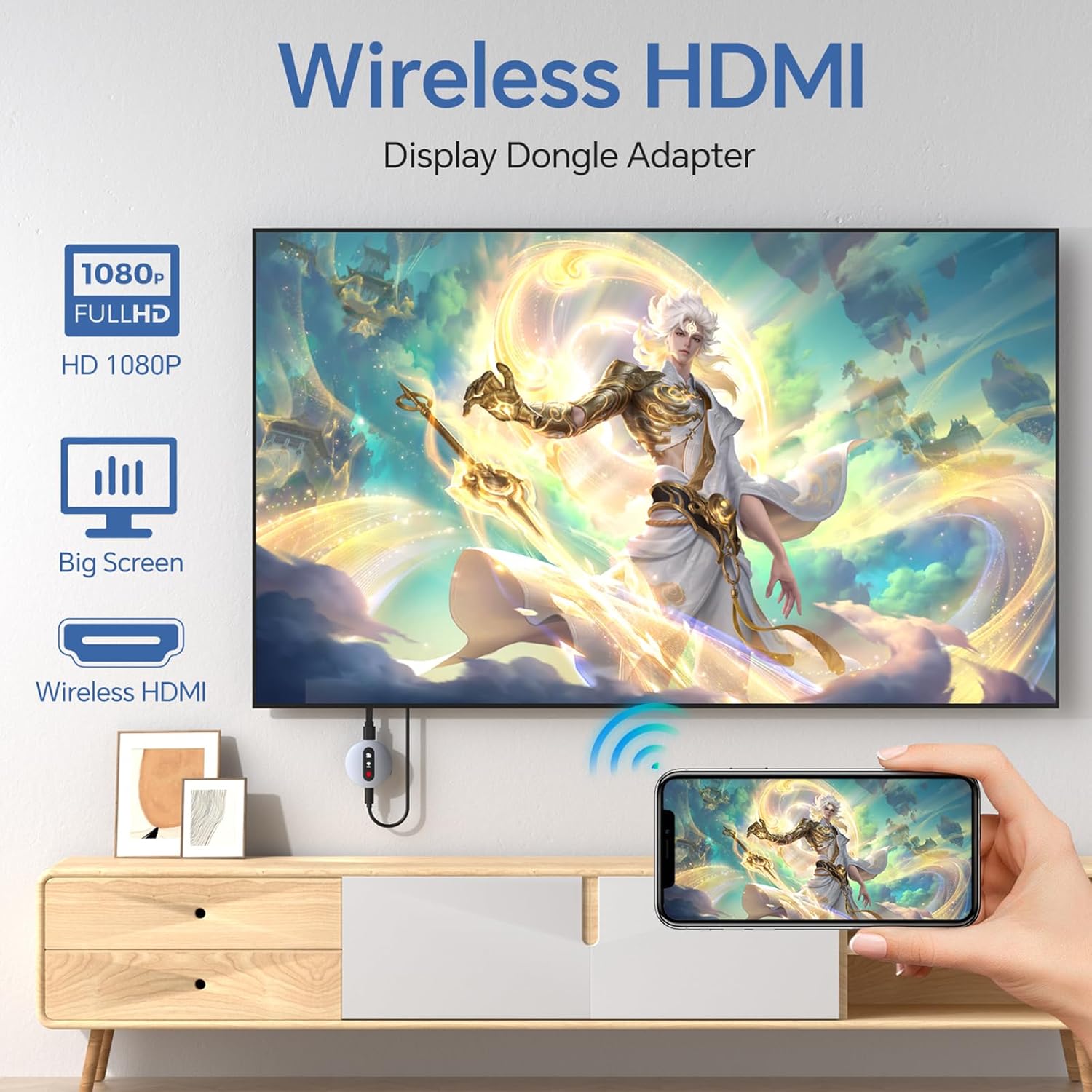
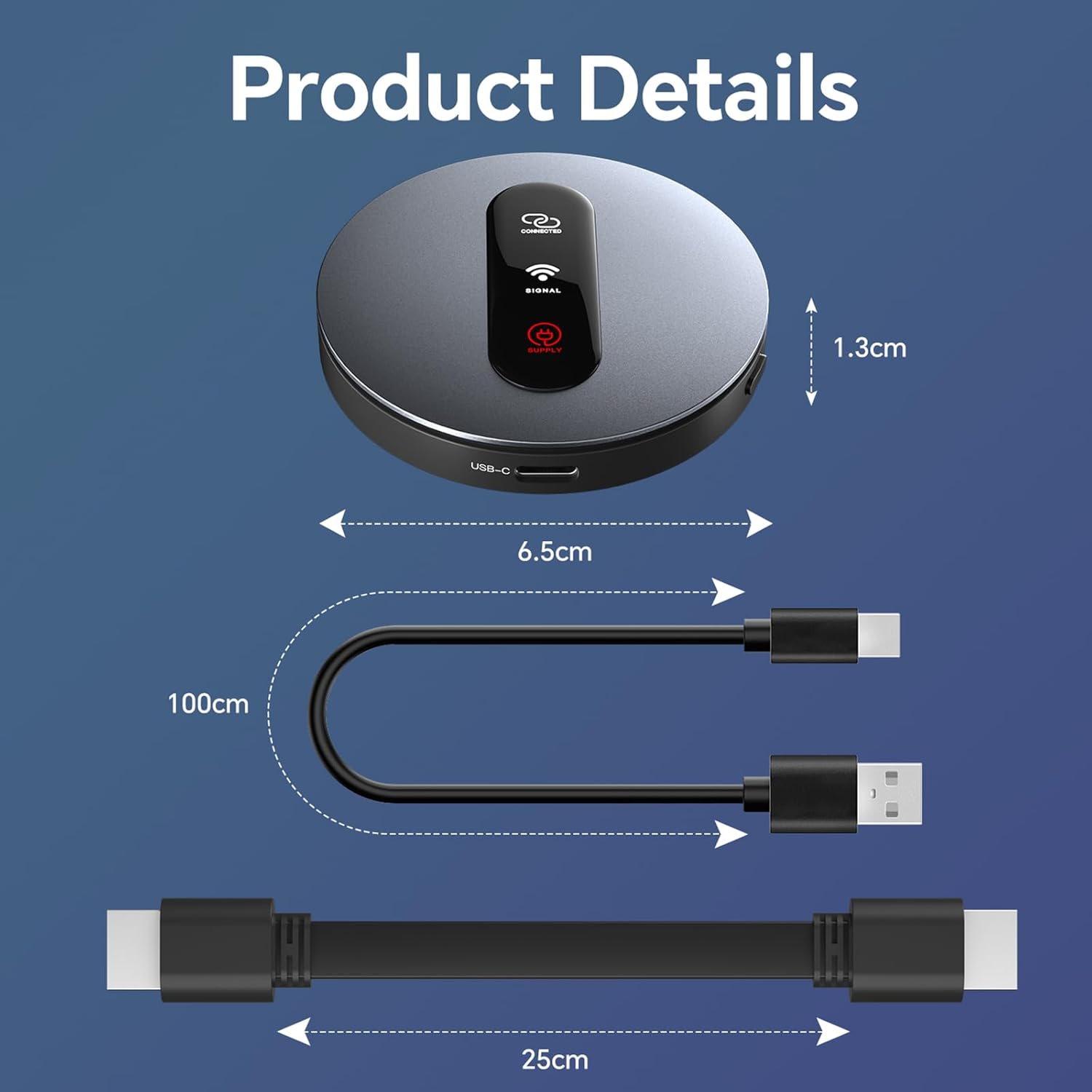
【Instant Wireless Screen Sharing】Experience seamless screen sharing without any additional apps, drivers, or Wi-Fi setup. Simply plug into the HDMI port and press the “Mirror” button to start streaming videos, music, and files within seconds.
【Universal Cross-Platform Support】This compact wireless HDMI adapter supports AirPlay for iOS and Mac systems, along with Miracast for Android and Windows devices, offering true versatility across all your gadgets.
【Wide Compatibility】Compatible with all HDMI-enabled displays including HDTVs, monitors, and projectors. Enjoy vibrant 1080p Full HD video at 60Hz for a truly immersive viewing experience. Easily switch between landscape and portrait modes to best match your content. Perfect for conference rooms, home theaters, and educational settings.
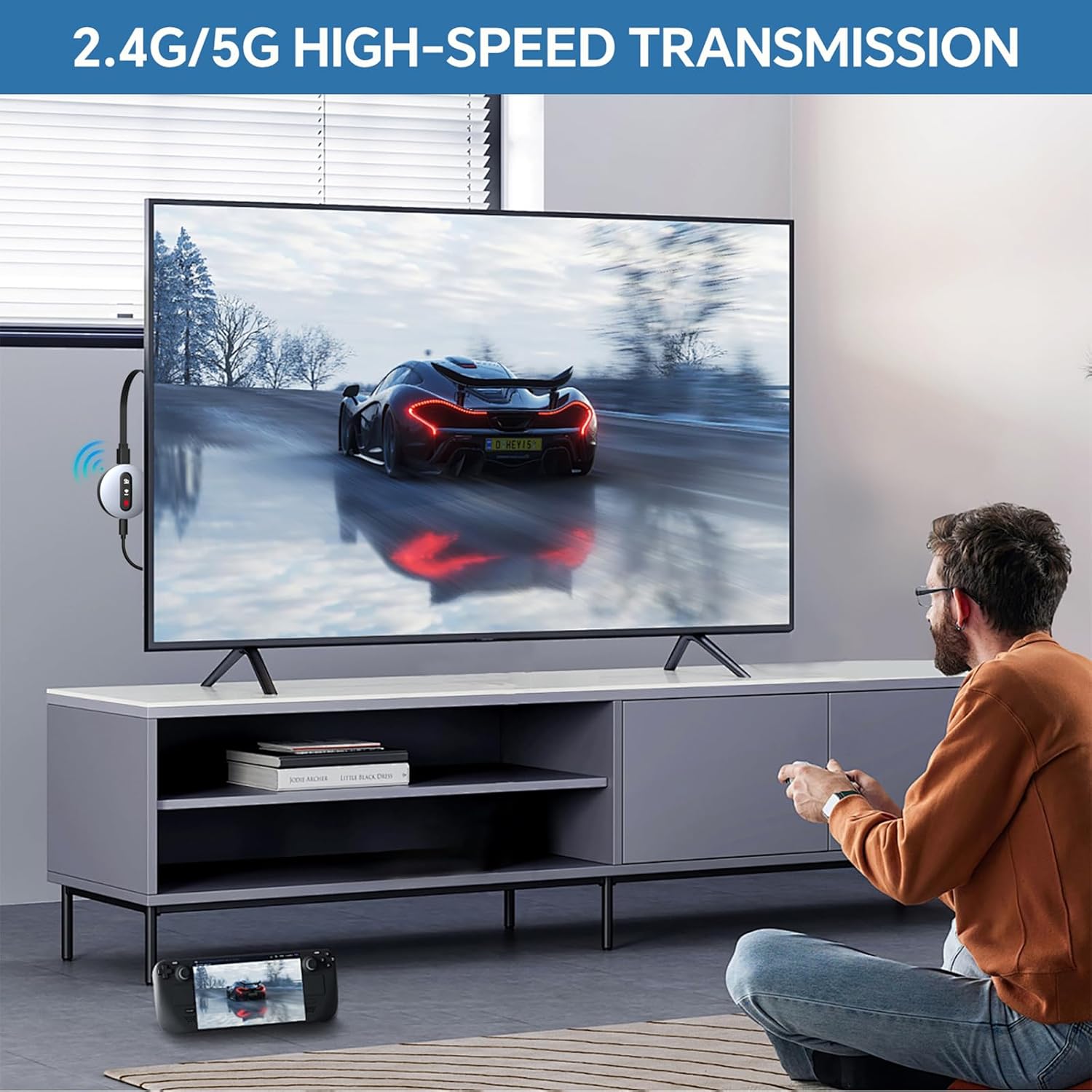
【Dual-Band Stable Connection】Equipped with 2.4G + 5GHz dual-band antennas and an advanced stability engine, this HDMI wireless extender delivers smooth, interference-free streaming even in busy network environments for a reliably lag-free experience.
【App Limitations】Please note: Due to HDCP copyright protection, some streaming apps—including Netflix, Amazon Prime Video, Hulu, and others—may not allow screen mirroring.
8 reviews for Wireless HDMI Display Dongle Adapter – Miracast Dongle with AirPlay DLNA, for Video/Audio Streaming from Phone, Laptop to HDTV, Monitor, Projector
Add a review

$49.99
Virginia –
💪
This Miracast dongle with AirPlay and DLNA support is an excellent option for streaming video and audio from your phone or laptop to an HDTV, monitor, or projector. It’s especially useful for older TVs that don’t have built-in wireless streaming capabilities, as it allows you to easily send content without the need for extra cables.Setup is quite simple and quick; it was up and running in just a few minutes. Once connected, the stream remains stable most of the time, with good image and sound quality for watching videos, presentations, or screen sharing.✔️ Ideal for TVs without Smart TV functionality✔️ Compatible with various devices✔️ Easy installation✔️ Good connection stability
Cara Fiesser –
Amazing Device
I love that when you turn it on it has easy instructions to set it up! I have been able to connect my phone, tablet and even PC to this so far. Picture quality is great and have enjoyed using this on my projector especially for toddler dance party 😂
Jeff J –
Convenient Wireless Display Adapter with Great Streaming Support
This wireless HDMI display dongle works great for screen mirroring from my phone or laptop to the TV. It’s especially helpful with older TVs that don’t have native casting built in, making it much easier to stream content directly without extra cables. Setup was pretty straightforward and once it’s connected it stays stable most of the time. I only gave 4 stars because it’s not perfect every time, but overall it’s a very useful tool if you want more streaming flexibility without replacing your TV.
Brandon –
Worked great p for phone, not for computer…
Wireless HDMI display dongle, this dongle did not work that great. One computer couldn’t find it, another did but the screen kept flickering while casting the screen. Mirroring from my phone worked fine, but I really got this hoping to be able to use it for my computers.
lbarrus –
Be patient while the blue tooth and device find each other.
Works great with my iPad mini. It was easy to setup and my iPad remembers the 4 digit code so I don’t have to input the code every time I turn on the monitor using the bluetooth/HDMI dongle. I purchased and returned 2 other brands of bluetooth dongles before I found this one that finally works. It’s a process 🙂
Frances casiano –
Easy to set up and work great
This wireless HDMI dongle works smoothly and is easy to set up. Screen mirroring is clear and lag-free, making it great for streaming and presentations.
Mai uzcategui –
Innovator
I finally found something that actually works! With its quick setup, my TV went from old to modern in just a few minutes. I’m very satisfied with this wireless device.
Noblet Fam –
Great Value for Streaming, but Watch Out for Latency!
I’m giving this Redwalk Wireless HDMI Display Dongle four stars because it is a very affordable and effective way to mirror your devices to a larger screen, though it isn’t perfect for everything.On the positive side, the setup is relatively straightforward. I was able to cast from my phone and laptop to my HDTV using both AirPlay and Miracast without much trouble. It’s incredibly compact, making it a perfect travel companion for hotel TVs or office projectors. For basic video/audio streaming and showing photo slideshows, it performs excellently and the picture quality is sharp.The reason for the four-star rating is the slight input lag. While it’s great for movies and presentations, there is a noticeable delay that makes it unsuitable for fast-paced gaming. Additionally, the initial connection can sometimes be a bit finicky depending on your Wi-Fi signal strength. Overall, for the price, it is a solid 2-way streaming solution that beats carrying long HDMI cables around, just don’t expect it to handle high-speed gaming!