
4K 1080P Wireless Display Adapter, Cast PPT, Movies from i-Phone, Tablet, i-Pad, Laptop, PC to TV, Projector, Monitor – Wireless HDMI Screen Mirroring Dongle – Supports Airplay/Mircast/DLNA
$29.99
Related Products





Product description
4K 1080P Wireless Display Adapter – Wirelessly Cast to Big Screens
The video showcases the product in use.The video guides you through product setup.The video compares multiple products.The video shows the product being unpacked. wireless hdmi Merchant Video
DARLYOR wireless display adapter lets you cast 4K HD video and audio from your i Phone, i Pad, Mac book, Android devices, laptops, and PCs to larger screens like TVs, monitors, and projectors. No more tangled HDMI cables in your living room or workspace!


1 Stunning 4K@30Hz
2 Mirror & Extend Mode
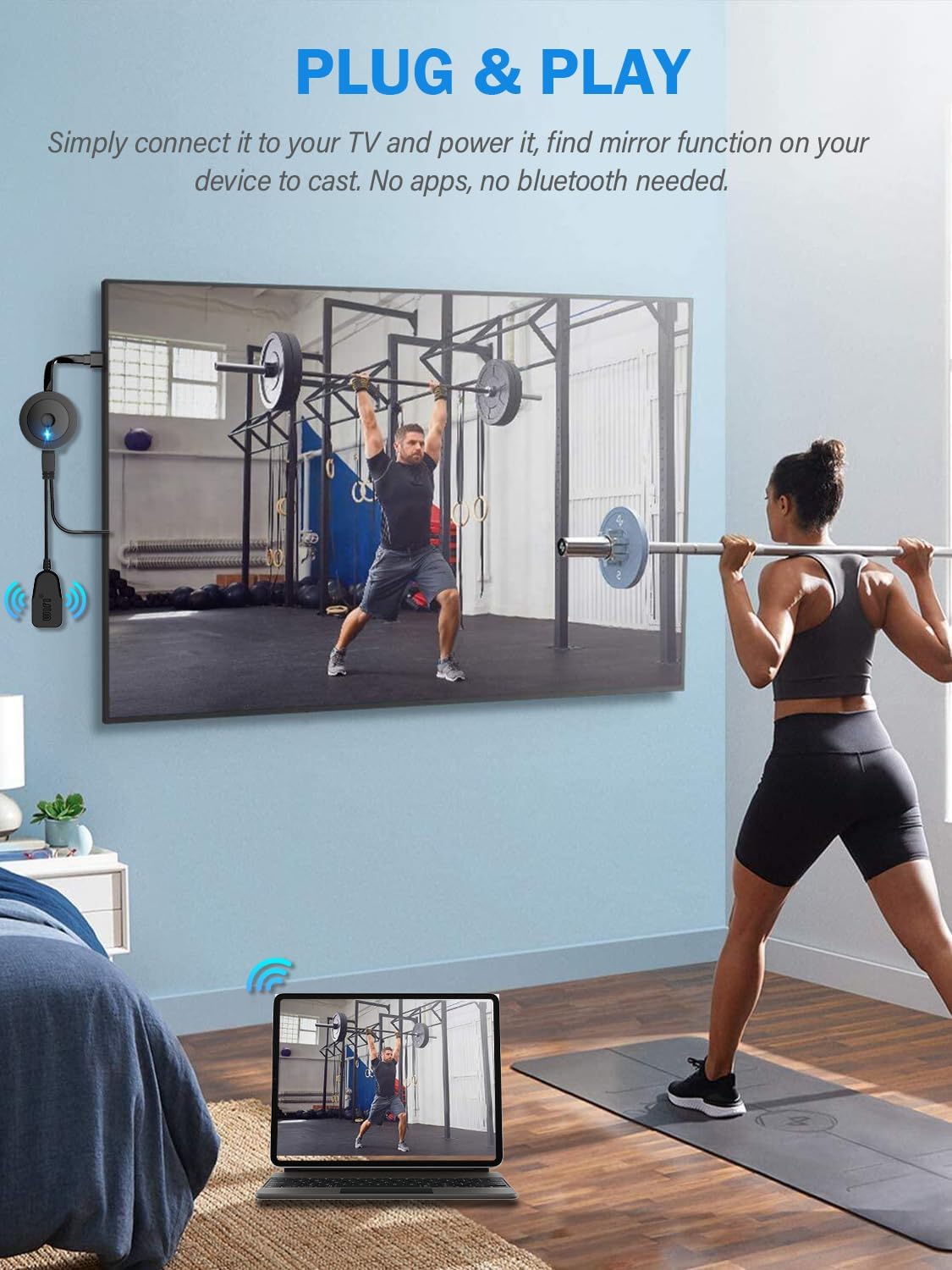
3 Plug & Play
Smooth Casting, No Drops, No Latency 
Wide Compatible – Fit for Windows, Android, Mac, iOS Devices 
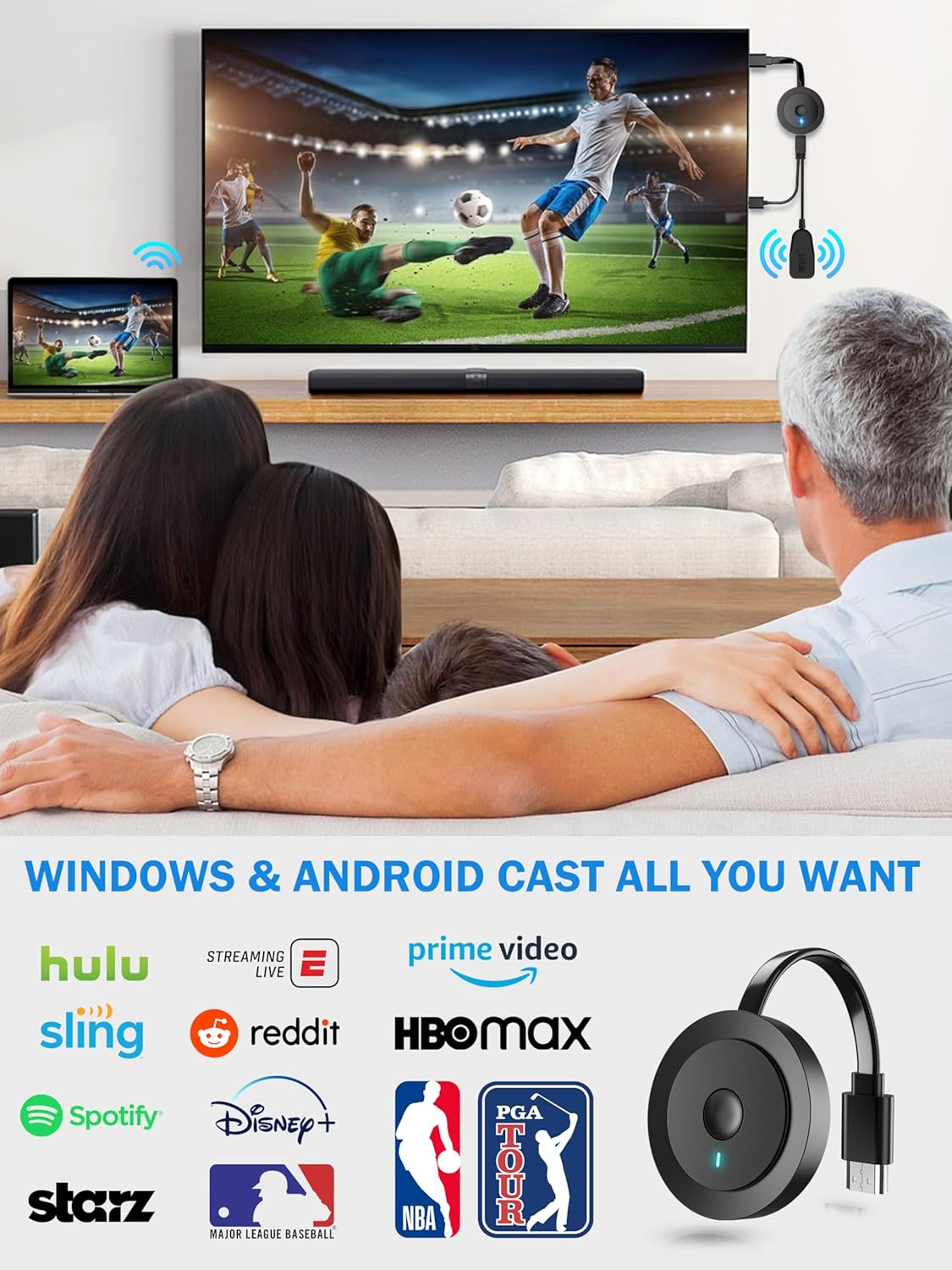
Windows & Android Support Most of Video Website or Apps 
iOS Device Doesn’t Support HDCP Website or Apps 
Fit All Your Need – Work or Home Entertainment


【Cast Small Screen to Big Display】 DARLYOR wireless display adapter can be used for casting 4K HD video and audio from your i-Phone(including i-Phone 17), i-Pad, MacBook, Android smartphones, tablets, laptops, and PC, on larger screens like TVs, monitors, and projectors. No more HDMI cables in your living room or workspace now
【Instant Casting from Windows or Android】 Really plug and play, with no limitations in casting any websites or apps. Cast all your favorite content from Windows, or Android devices directly to the TV. Supports Net flix, Prime Video, HBO Max, and more. Transform your old TV into a smart screen for an immersive viewing experience
【Limited Mirroring for iOS】 Our HDMI wireless dongle also can mirror movies, shows, or Live TV from your i Phone, i Pad, or MacBook to your TV. You can use the adapter in Tiktok, Zoom, Safari, Office apps, Youtube, Spotify, Skype, Twitter, Reddit, etc. But it is not compatible with Net flix, Prime Video, HBO Max, or other HDCP copyright apps
【Wireless & Easy Connection】 Simply plug the dongle into your TV, power it up, and find the mirror function on your device to start casting. Enjoy high-definition video and audio from your device to any display, making your HDMI wireless. (Note: iOS system requires an additional step to connect to the dongle’s wireless signal
【Flexible Mirror & Extend Mode】 With our Wireless HDMI Dongle, you can enjoy a range of resolutions including 4K @ 30Hz, 1080P @60Hz, 1080P @ 30Hz, 720P. Share stunning video and audio with friends and family members. In extend mode, you can cast video on the TV while using your phone simultaneously for a multitasking experience
【Online Upgrade 】Note: For screen mirroring with your Goo-gle P-ixel Phone, ensure optimal performance by upgrading the dongle’s chip online. Reach out to us for assistance if needed.
8 reviews for 4K 1080P Wireless Display Adapter, Cast PPT, Movies from i-Phone, Tablet, i-Pad, Laptop, PC to TV, Projector, Monitor – Wireless HDMI Screen Mirroring Dongle – Supports Airplay/Mircast/DLNA
Add a review

$29.99
Bob Paules –
Easy to set up
Works great, but only casting to a TV set – could not get it to work casting to a monitor
Frank –
Do not Buy
Defective. Instructions were in print so small you could not read without a magnifying glass. Screen locked up and could not proceed with setup. Packaging was poor.
CoreyJ –
Product works as described. Very satisfied with my purchase.
I purchased this for use while traveling. I’m able to connect to hotel and air b&b televisions and I’m able to st mirror my screen from my laptop, iPhone or iPad with ease. Minimal set-up, but worth it.
MJ Scott –
Tedious installation for Android phone
Why did you pick this product vs others?:Installation is tedious and time consuming. The directions are confusing.
Andreas Ramos –
It works, despite the instructions! 🙂
It actually works. I can open Netflix, Amazon Prime, Youtube, etc. on my Samsung Note 23 Ultra and project these onto our LED projector to view on a large pull-down screen.However… it’s a challenge to figure out the instructions.Step 1: Make sure your phone and this Chromecast dongle are both on the same WIFI network.Step 2, Setup: On your Samsung phone, select Settings | Connected Devices | (scroll down to) Smart View | Mira Screen. Your phone’s screen will appear on the large screen.Step 3: Start your Netflix, Amazon Prime, YouTube, videos on your phone, etc.If there are black bars at the bottom of the screen, select the Mira Screen icon on your phone’s screen (an oval with an arrow). Select “Change Aspect Ratio”, Select “Full screen on connected device.Tip: When viewing YouTube, the screen may be vertical. Rotate your phone to horizonal and the screen changes to full view.So… it works. But you have to figure this out on your own. It took me an hour to find these settings. I spent another hour to try to get Helen’s Google Pixel 7 to connect to the Mira Screen device. I think it should be (on Pixel 7): Settings | Connected Devices | Connection Preference | Cast , but it doesn’t find the Mira Screen device. Perhaps Mira Screen can add instructions?
Chica Venus –
EXCELENTE !!!
EXCELENTE !!!
Henry Kuiper –
Junk
Didn’t work
Anthony Brady –
Not easy
Hard to set up.